
Creating an Account
Before you can use the Chainlink Platform and its products, you need to create an account.
There are two ways to create an account:
- Create a new organization: Sign up directly on the Chainlink Platform. You'll become the Owner of a new organization.
- Join an existing organization: Accept an invitation from an existing organization Owner. You'll become a member of that organization automatically after account creation.
Prerequisites
- A valid email address
- Access to your email inbox to receive verification codes (and an invitation email, if joining an existing organization)
Step 1: Navigate to the Chainlink Platform
There are two ways to begin the account creation process:
Option A: Create a new organization
In this option, you'll create a new organization and become the Owner of that organization. The Owner role includes every permission for every product. See RBAC to learn more about roles.
Go to app.chain.link and click the "Create an account" button.
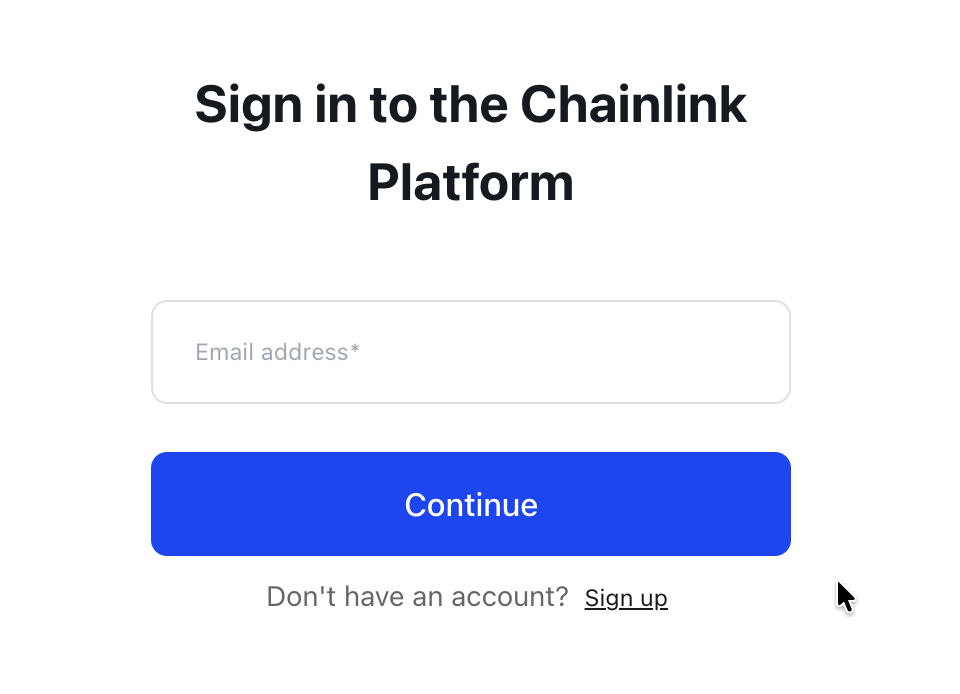
Option B: Join an existing organization
In this option, you'll join an existing organization and become a member of that organization.
If you've received an invitation email from an organization Owner, click the "Accept Invitation" button in the email. This will redirect you to the account creation page.
After choosing either option, continue with the following steps to complete your account creation.
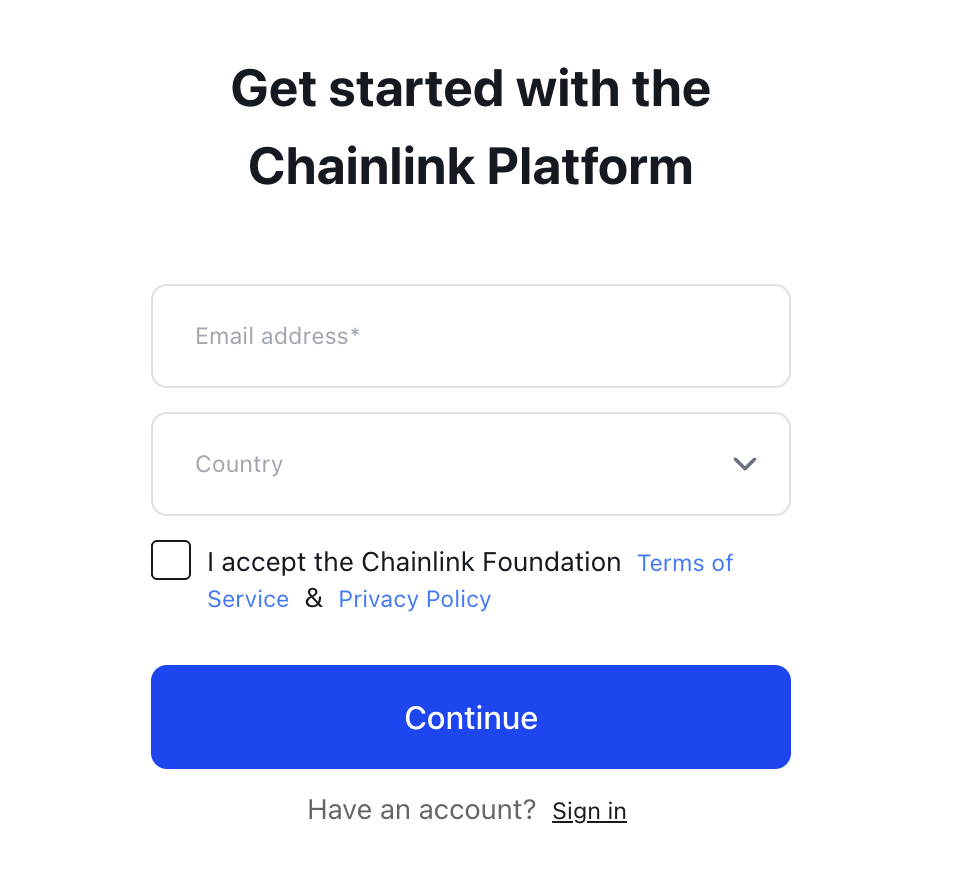
Step 2: Enter your information
Fill in the required information:
- Email address: Enter a valid email address (if not already pre-filled)
- Country: Select your country from the dropdown
- Terms and policies: Review and accept the Terms of Service and Privacy Policy
Click "Continue" to proceed.
Step 3: Verify your email
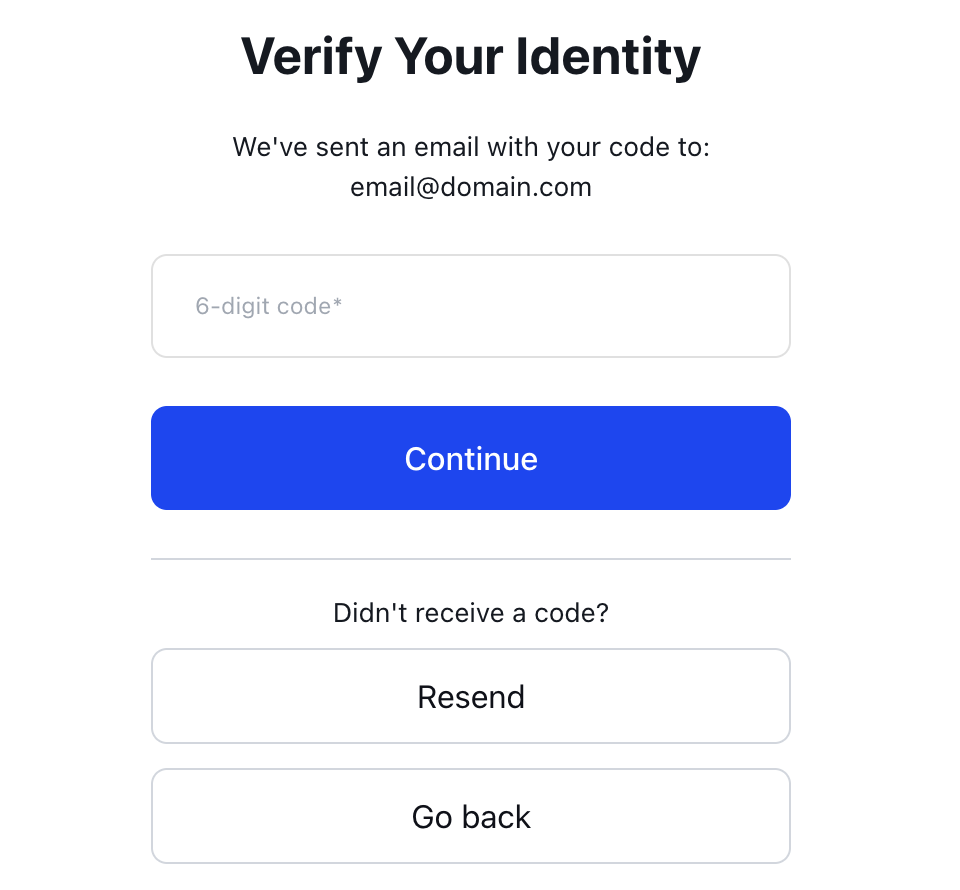
Check your email inbox for a message from Chainlink containing a 6-digit verification code. Enter this code in the verification screen and click Continue.
Step 4: Set your password
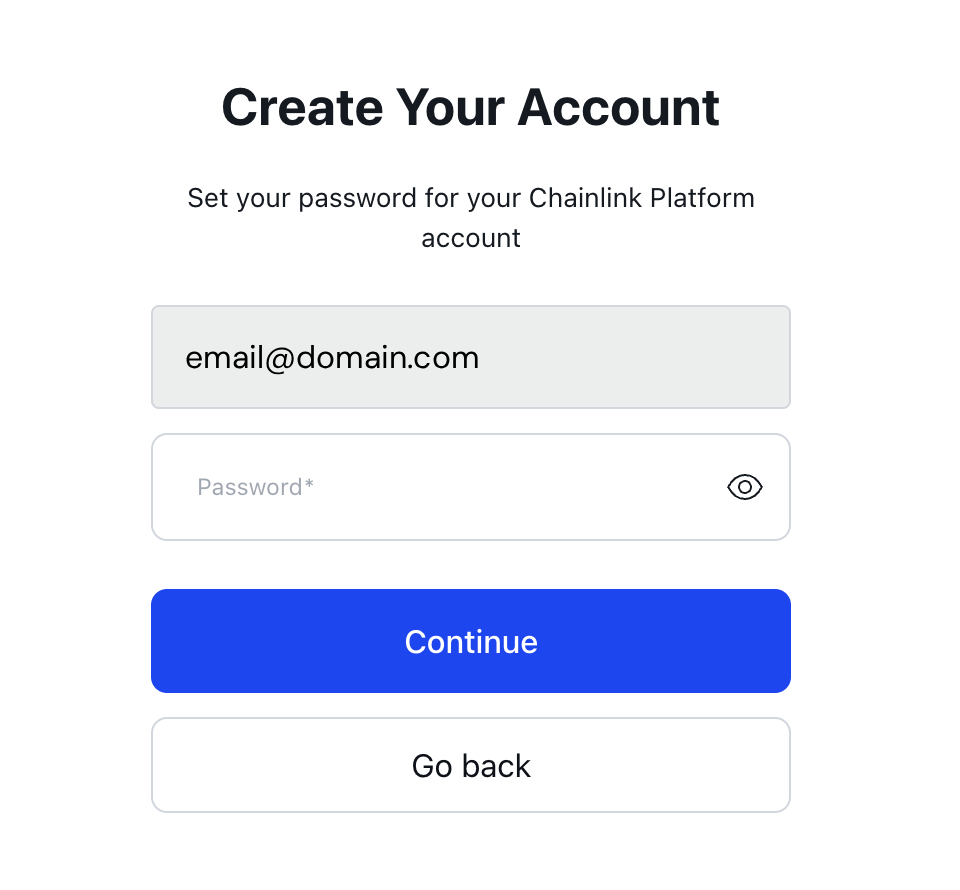
Create a secure password for your account. Your password must meet the security requirements displayed on the screen.
Step 5: Set up two-factor authentication (2FA)
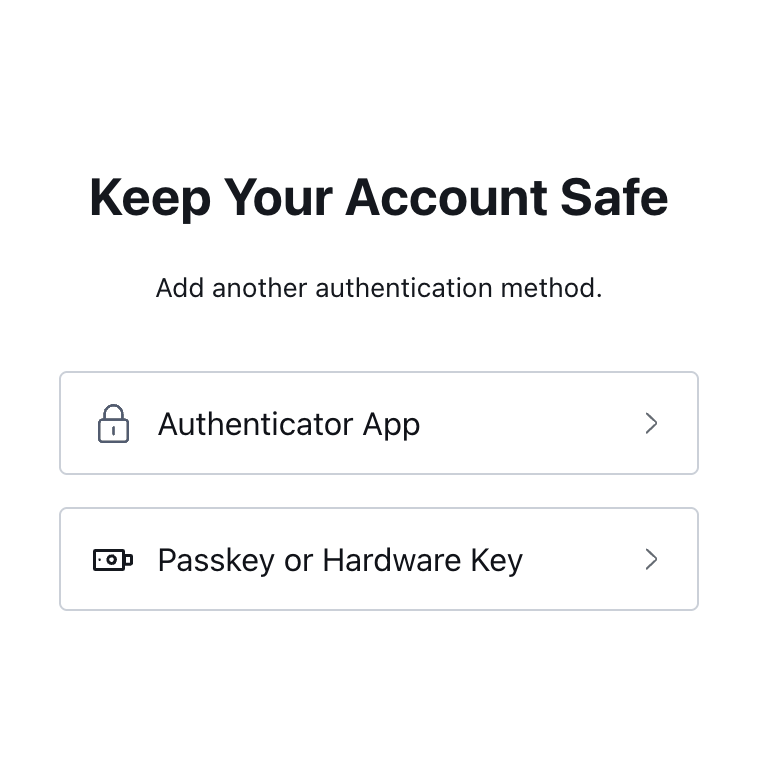
To secure your account, you'll need to set up two-factor authentication. You'll be presented with two authentication method options:
- Authenticator App - Use an authenticator app to generate one-time codes
- Passkey/Hardware Key - Use a passkey or a hardware security key
Using an authenticator app
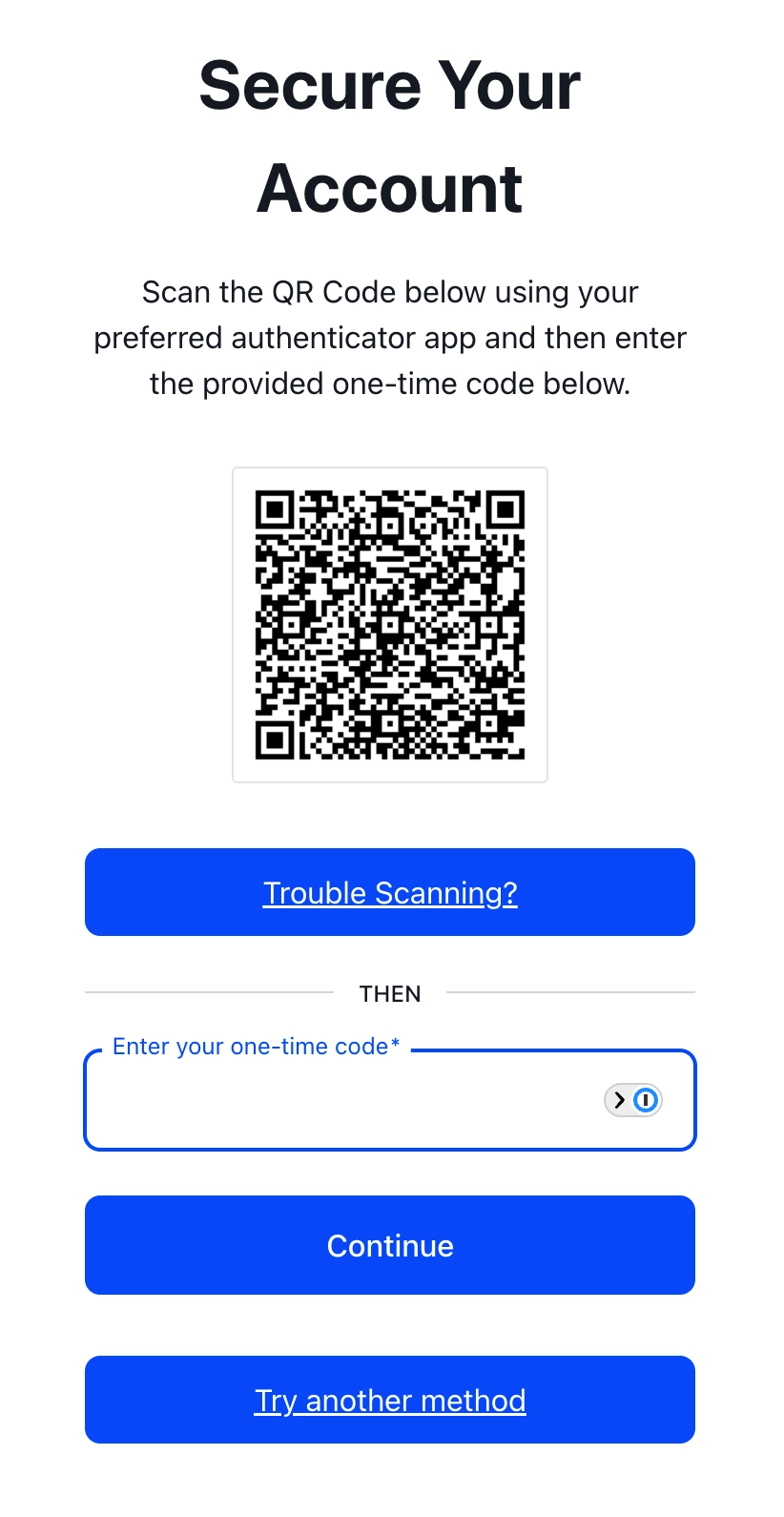
If you choose the authenticator app option:
- Click "Authenticator App"
- Open your preferred authenticator app (such as Google Authenticator, Authy, or 1Password)
- Scan the QR code displayed on the screen
- Enter the 6-digit one-time code generated by your authenticator app
- Click "Continue"
Step 6: Save your recovery code
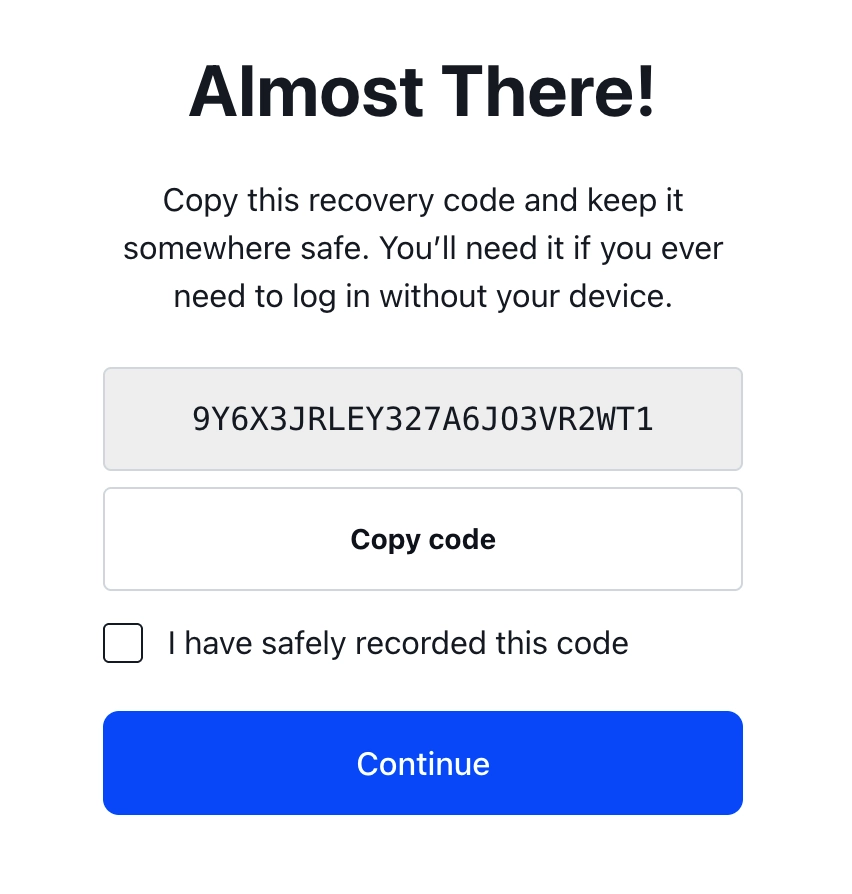
Your recovery code is essential for regaining access to your account if you lose access to your authenticator device.
- Copy the recovery code displayed on the screen
- Store it securely in a password manager or offline location
- Check the box "I have safely recorded this code"
- Click "Continue" to complete account creation
After completing these steps, you'll be redirected to your Chainlink Platform dashboard.
What's next?
Once your account is created:
-
Install the CLI: Follow CLI Installation to install the CRE CLI
-
Log in to the CLI: Follow Logging in with the CLI to authenticate your CLI session
- If you created a new organization (Owner): Invite team members to collaborate
- Learn about roles: Read RBAC to understand member roles
-
Create API keys: Read API Keys for programmatic access